
You write code all day. But how much of your day is actually writing code?
Think about it. PR descriptions. Code review comments. Slack threads explaining your architecture decisions. Documentation. README updates. ChatGPT prompts asking it to debug a function. Emails to your team lead. Jira ticket descriptions.
Most developers spend more time writing English than writing code. And they type all of it at 40-60 words per minute, one character at a time.
What if you could speak the English parts at 150 words per minute and save your keyboard for the parts that actually need it?
You Don't Dictate Code. You Dictate Everything Else.
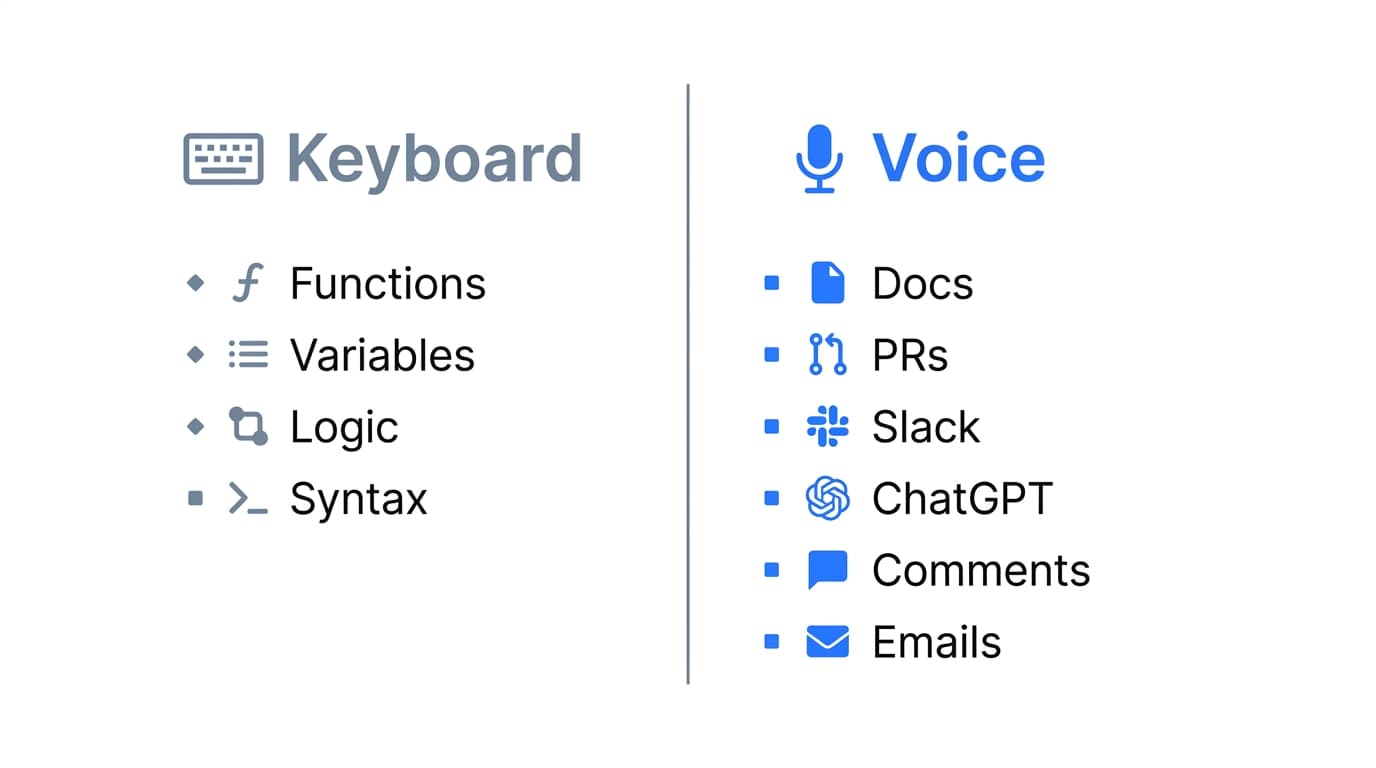
Let's get this out of the way: voice dictation is not about writing code by voice. Syntax needs precision. Brackets, semicolons, indentation, variable names. Your keyboard handles that better than any speech engine ever will.
But look at the rest of your workflow. The amount of natural language a developer writes in a day is staggering:
- Documentation and comments in your codebase
- Pull request descriptions explaining what changed and why
- Code review feedback on other people's PRs
- Slack and Teams messages to your team
- AI prompts for ChatGPT, Claude, or Copilot Chat
- Emails about project status, blockers, timelines
- Ticket descriptions in Jira, Linear, or GitHub Issues
- README files and onboarding guides
All of this is plain English. All of it gets typed one key at a time. And all of it could be spoken instead.
What This Looks Like in a Real Workday
Morning: AI-Assisted Development
You open VS Code and start on a feature. The logic is clear, but you need to prompt your AI assistant. Instead of typing out a paragraph-long prompt, you hold your trigger key and speak:
"Refactor the authentication middleware to support both JWT and API key validation. The JWT flow should check the Authorization header for a Bearer token and validate it against our signing key. The API key flow should check for an X-API-Key header and look it up in the api_keys table. Return a 401 with a descriptive error message if neither is present."
That took about 15 seconds to say. Typing it would have taken over a minute. And because Smart Format cleans up the transcription automatically, the prompt reads clearly. No filler words, proper punctuation, complete sentences.
You send the prompt. While the AI works, you dictate a comment block above the function explaining the dual-auth approach for the next developer who reads this code.
Midday: Code Reviews and Communication
Three PRs need your review. For each one, you read the diff, then hold the trigger key and speak your feedback directly into the comment box. Thoughtful, detailed reviews. Not the two-word "looks good" that you'd leave if you had to type everything out.
A teammate asks about the authentication changes in Slack. You hold the key and explain the approach in a few sentences. Clear, complete, and sent in seconds instead of minutes.

Afternoon: Documentation
The feature is done. Time for the part nobody looks forward to: documentation. You open the README and start dictating. Setup instructions. Configuration options. API endpoint descriptions. Migration notes.
Dictation turns a 45-minute documentation task into 15 minutes of talking through what you built. The words come faster when you speak because you're explaining, not composing. It's the difference between writing an essay and telling someone how something works.
End of Day: Wrapping Up
PR description for the feature branch. You dictate a summary of what changed, why you made certain design decisions, and what reviewers should pay attention to. A detailed PR description that would normally get skipped because "who has time for that."
Why This Works for Developers
Smart Format Makes Speech Read Like Writing
When you speak, you don't speak in perfectly formatted prose. You pause, restart, use filler words. Smart Format takes your raw speech and cleans it up. Filler words removed. Punctuation added. Sentences structured properly.
For developers, this matters because your audience is other developers. PR descriptions, documentation, and Slack messages need to be clear and scannable. Smart Format bridges the gap between how you naturally explain something and how it needs to read.
System-Wide Means Every App
VS Code. Chrome. Slack. Terminal. Mail. Linear. Notion.
Developers live in a dozen apps. FlowDictate works in all of them. One trigger key, and text goes wherever your cursor is. No copying from a separate window. No switching contexts.
This is the key difference from dictation tools built for specific apps. You don't need a Slack integration or a VS Code extension. You need a system-wide trigger key that works everywhere.
Custom Words for Technical Vocabulary
General speech recognition handles everyday language well, but technical terms can cause problems. Framework names, library names, CLI commands, internal project terminology.
Custom Words lets you teach FlowDictate your vocabulary. Add your stack (Kubernetes, PostgreSQL, FastAPI, Terraform), your internal project names, and any acronyms your team uses. Accuracy for technical dictation improves noticeably after the first few days.
Magic Edit for Quick Revisions
Dictated a paragraph that's close but needs tightening? Select it and use Magic Edit. Give a voice instruction like "make this more concise" or "rewrite this as bullet points" or "make the tone more technical."
Revisions without touching the keyboard. Useful when polishing documentation or cleaning up a PR description before submitting.

Tips for Developers
1. Start with AI prompts. If you use ChatGPT, Claude, or Copilot, start dictating your prompts instead of typing them. You'll immediately notice you write better, more detailed prompts because speaking is faster than typing. This is the fastest way to see the value.
2. Use it for code reviews. Detailed code review feedback is one of the best uses. Speaking your thoughts while reading a diff is more natural than typing them. Your reviews will be more thorough because the bottleneck of typing is gone.
3. Dictate documentation while the feature is fresh. Don't wait until you've forgotten the details. Right after finishing a feature, dictate the docs. Speaking through what you built while it's still in your head produces better documentation than trying to reconstruct it later.
4. Build your Custom Words list early. Every time the transcription gets a technical term wrong, add it. Framework names, internal terminology, and acronyms are the usual culprits. By the end of your first week, dictation accuracy for your vocabulary will be near-perfect.
5. Pick a comfortable trigger key. You'll switch between typing and dictating frequently. Choose a key that's easy to reach without disrupting your hand position. Fn or Right Option are popular choices since they don't conflict with IDE shortcuts.
Getting Started
FlowDictate is a native app for macOS and Windows 10 & 11 with a 14-day free trial. No credit card required. Setup takes under two minutes:
- Download FlowDictate from flowdictate.com
- Choose your trigger key during setup
- Open VS Code, Slack, or any app where you write
- Hold the key and start speaking. Smart Format is on by default.
FlowDictate is SOC 2 compliant, runs natively on macOS (Apple Silicon and Intel) and Windows 10 & 11, and works across every app where you write. Your keyboard handles the code. Your voice handles everything else.